Free Screenshot Editor
Annotate, Beautify & Blur in Your Browser
Made for SaaS teams who ship help docs, release notes, and launch posts. Add arrows, blur sensitive info, drop screenshots onto gradients that actually look good.
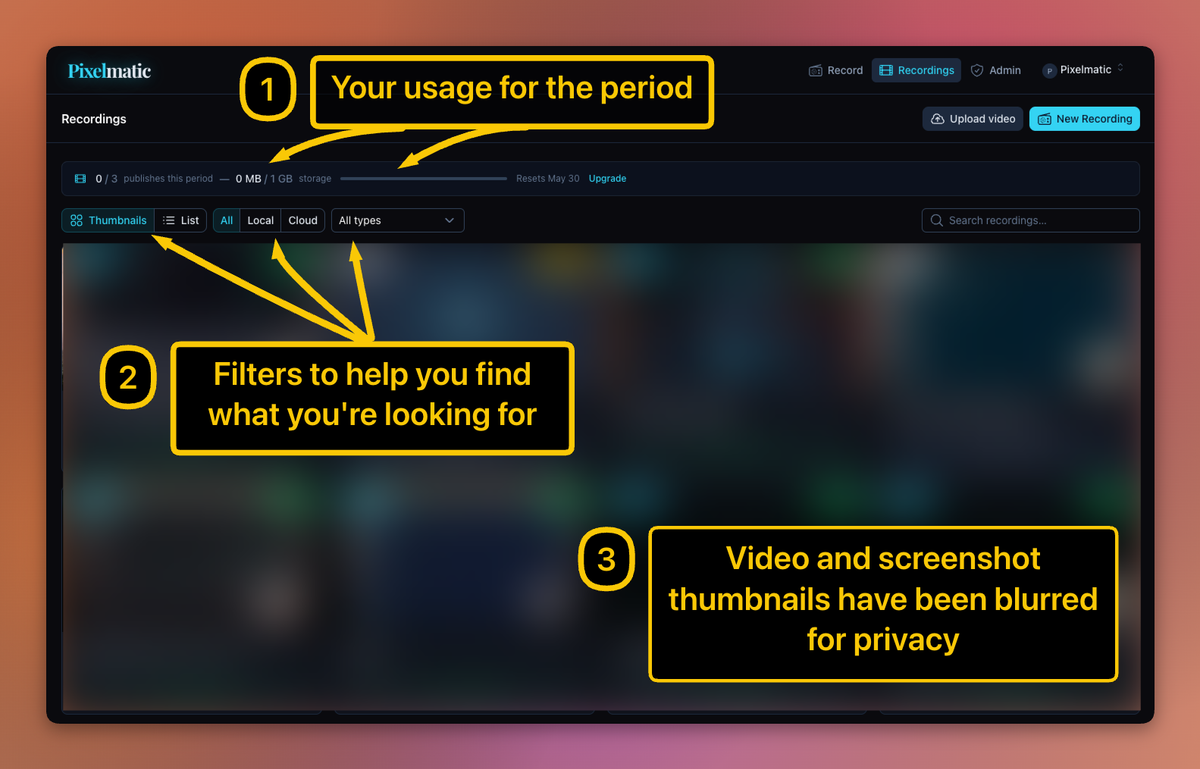
Annotate screenshots in seconds
Bug reports. Help articles. Internal walkthroughs. The work where a screenshot only does its job once you've pointed at the thing.
Arrows
Drag, rotate, color-match to whatever you're calling out.
Boxes
Frame the part of the UI that matters.
Text
Labels and captions, right where they count.
Numbered steps
Turn a sequence into a 1-2-3 walkthrough.
For your help docs and knowledge base
A knowledge-base article only works if the screenshot makes the step obvious. Capture, point at the button, label the field, ship it. Same canvas, same workflow, every time.
For your bug reports
Engineering doesn't want a 4MB unedited screenshot in Linear. They want one with the broken thing circled, the working thing for comparison, and a label that says "this is the broken version." Done in 20 seconds.
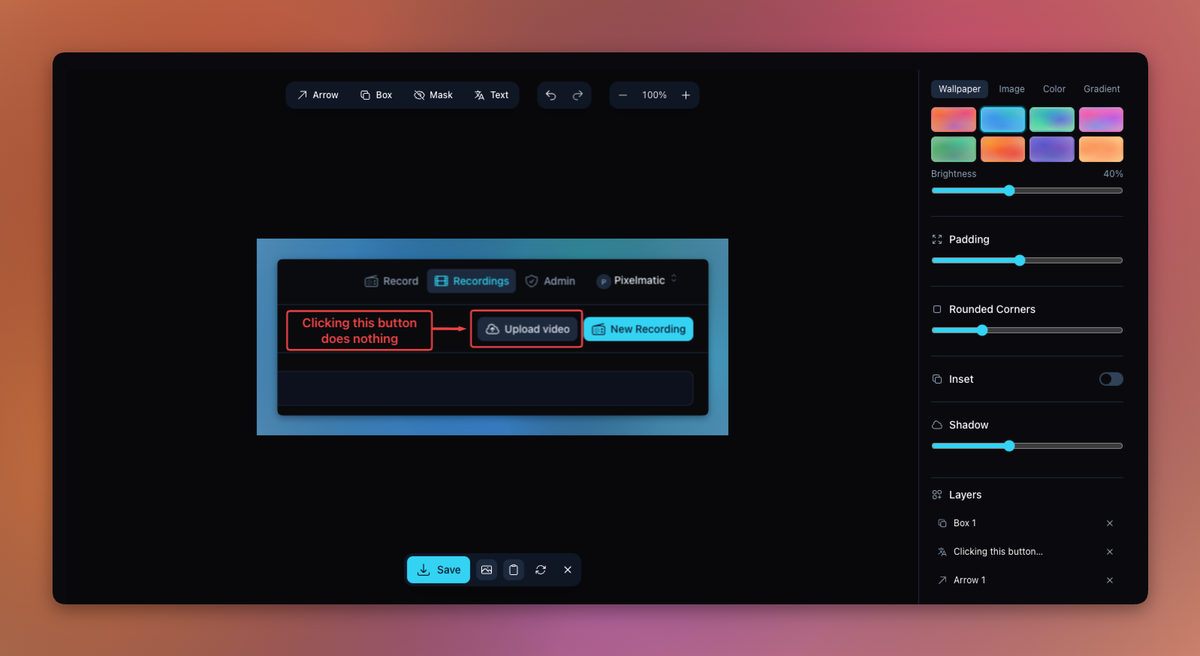
Beautify screenshots for any channel
Raw screenshots look like raw screenshots. Fine for Slack. Not fine for a launch tweet, a landing page hero, or the deck the CEO is presenting.
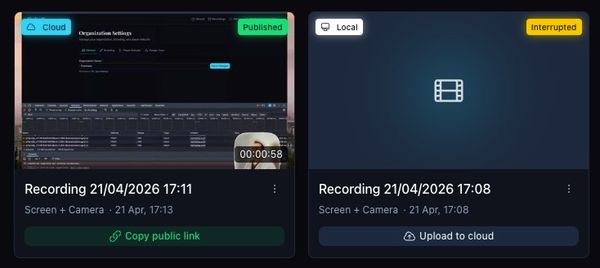
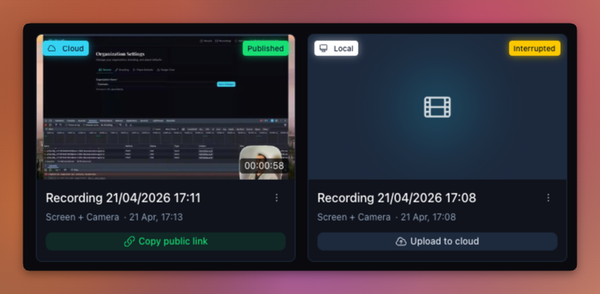
Blur or redact sensitive info before you share
Customer emails. API keys you forgot were on screen. The Slack notification that just popped up. Hide it before it ships, not after.
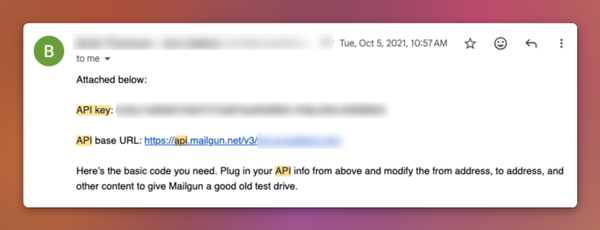
One-tool blur
Paint over anything sensitive. No fiddling with shapes.
Resizable mask
Pull it tighter when you nail the area, looser when you don't.
Flattened on export
The blur is rendered into the image, not just hidden under a layer.
Built for SaaS teams
The editor is free, forever, with a free account. But if you're a SaaS team, the screenshot is rarely the whole story.
Org brand settings Paid
Set your team's background, padding, and frame once. Every teammate's screenshots match.
Hosted, branded sharing Paid
Send a link instead of an attachment. Password-protect what needs it.
Same tool records video
Walkthroughs, demos, async standups. Screenshots are just one mode of Pixelmatic.
How it works
Capture or paste
Hit "capture screen" to grab a tab, window, or your whole screen. Or paste from clipboard. Or drag a file in. Whatever's closest to hand.
Edit
Annotate, beautify, or blur, all in the same canvas. No tool-switching.
Download or share
Export as PNG. Or, on a paid plan, get a hosted shareable link with a password and your team's branding.
FAQ
Try the free editor.
Keep what works.
Open it. Make a few screenshots better than they were. If your team gets value out of it, the rest of Pixelmatic is here when you need it.
Open the Free Editor