Search and Replace for Captions
If you've spent any time editing captions, you'll know the pattern. The transcription gets a word wrong, and then it gets it wrong the same way, twelve times. A product name, someone's surname, a technical term... the machine mishears it once and commits to it.
Until now, fixing that meant editing each line by hand. So we've added search and replace to the caption editor.
How It Works
Open the caption editor and you'll see the usual search box. There's now a small arrow next to it. Click it and a replace field unfolds underneath, not too different from what you'd find in a code editor.
Type what you're searching for and what it should become. Every match is shown right in the caption list: the old text struck through on red, the new text next to it on green. You see exactly what's about to change before anything changes.
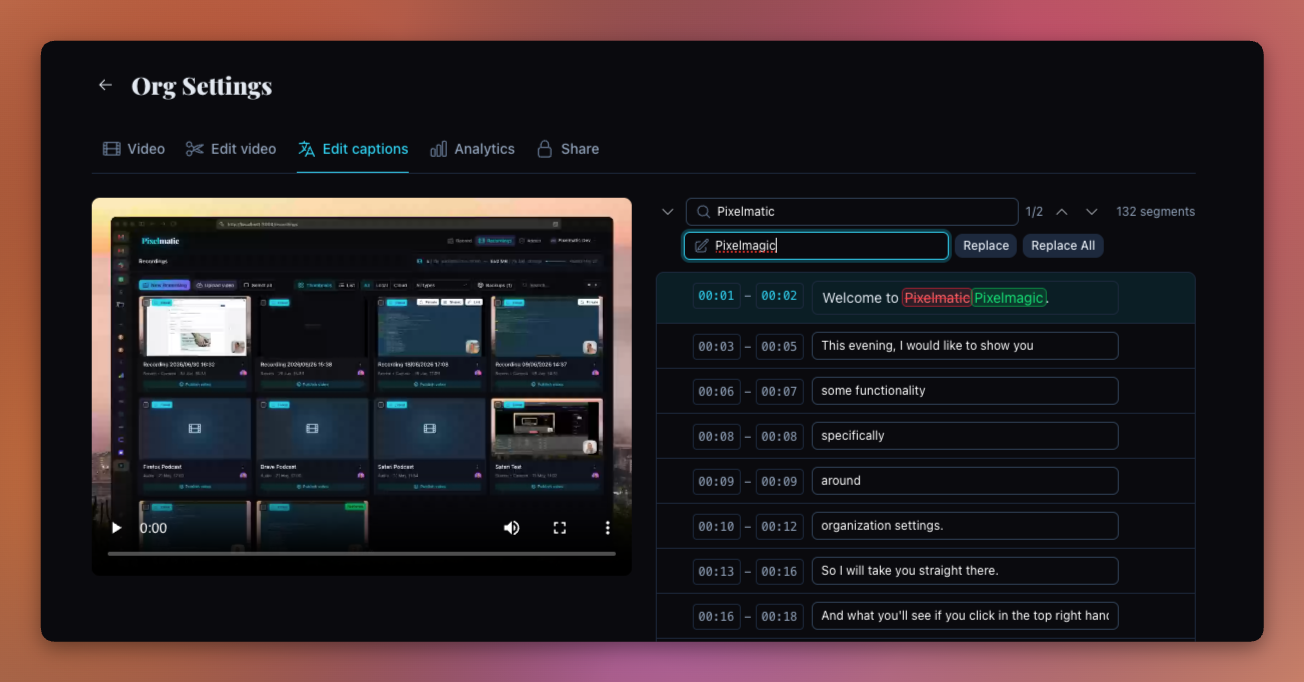
From there it's up to you. Replace handles the current match and moves to the next, so you can step through and skip any you're not sure about. Replace All does the whole lot in one go.
Nothing Is Final Until You Save
The replacements only live in the editor. Nothing touches your video until you hit "Save captions", so if a replace-all goes sideways, close the editor and you're back where you started.
While we were in there, the search counter got a little sharper too. It now counts every occurrence, not just the lines they appear on, so "3/14" means exactly that.
It's a small thing, but it's the kind of small thing you end up reaching for more often than you'd expect.
Until next time!
Wouter
Founder