Folders For Your Recordings
Search and tags will find a recording when you can describe it. But sometimes you don't want to search at all. You just want to open a shelf and see what's on it.
So we've added folders to the library.
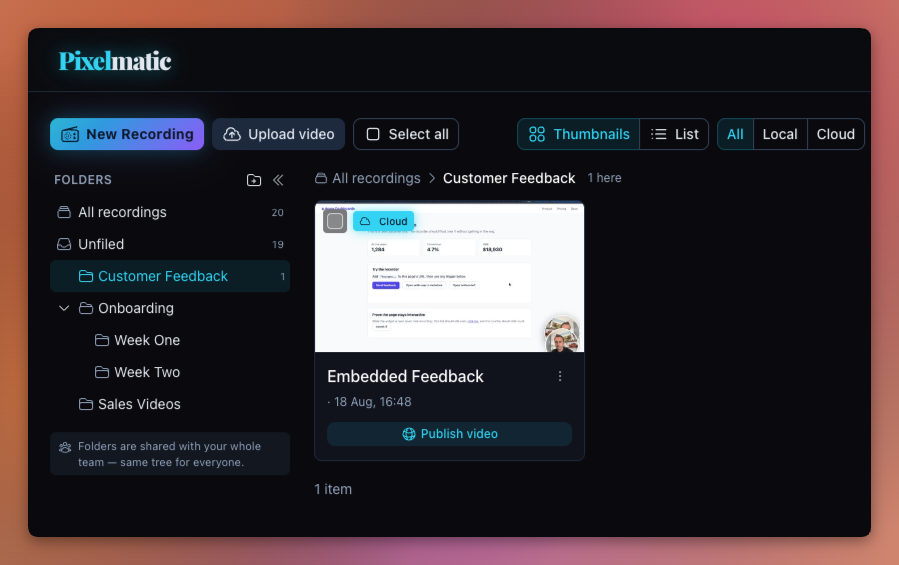
One Tree, Shared
Folders belong to your organisation, not to you. Everyone on the team sees the same tree, so when someone files a video under Onboarding, that's where the rest of the team goes looking for it.
You can nest them as deep as makes sense (up to 10 levels, which we hope you never need). "Unfiled" catches anything that hasn't been put away yet, and every folder carries a true count of what's inside it.
Drag And Drop
Moving things is mostly dragging. Pull a recording onto a folder in the sidebar to file it. Drag a folder onto another to nest it, and we'll ask you to confirm before anything moves. Drop something on the empty part of the panel and it goes back to the top level.
The breadcrumb along the top works the same way... the child folders sitting next to it are both links and drop targets, so you can move a video two folders down without leaving the page.
The Big Tidy-Up
Select a few recordings and a small bar appears with three options: Move to, Publish, and Delete. This one is really for the first clean-out, when everything you've recorded over the last six months is sitting in one long list.
Bulk publish queues each video the usual way, so you can carry on elsewhere while the transcodes tick over.
Deleting A Folder Doesn't Delete Videos
Worth saying plainly, because it's the thing people worry about. Removing a folder never removes what's in it. Those recordings simply return to the library root, waiting to be filed somewhere else.
Your expanded and collapsed folders are remembered between visits too, so the tree looks the way you left it.
If your library has grown past the point where scrolling works, spend 10 minutes making three or four folders. It's a good use of the time.
Until next time!
Wouter
Founder